In this recipe, I am introducing a different type of usage scenario: batch job, which is commonly used in line-of-business (LOB) application. Since the Storage Account is still accessible from internet (see details in previous post), I would still consider this recipe under the ‘public’ categories: Azure Function Batch Job with Storage Account, and here are the characteristics or matching criteria:
- Application has no access endpoint and runs on background in a preset interval
- Business logic processing is required*
- Data is served from one or more publicly accessible resource
- Processed result is stored in publicly accessible Azure Storage Account
- Data sensitivity is low, which has no or low impact to the organization
*If there is no business logic processing is required, Azure Data Factory could be a better choice for copying, moving and/or transforming data.
Here are the areas I would like to demonstrate in this recipe:
- Use Azure Functions to host batch job with Timer trigger for scheduling
- Enable application monitoring with Application Insights
- Use Key Vault reference to retrieve sensitive application settings for Azure Functions
- Enable RBAC in both Storage Account with Managed Identity (MS Doc link)
- Demonstrate CI/CD automation with Azure DevOps using Bicep and YAML
You can find all the code in GitHub (link).
Application Example
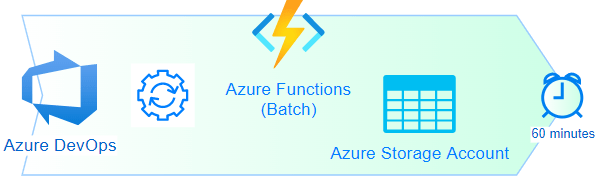
As an example, this batch job downloads a dataset externally for business processing and stores the result into Storage Blob. The job requires to run hourly and should take less than 10 seconds to complete. The implementation is to use an Azure Function with Timer Trigger and Blob Binding. Below diagram shows the deployment model into Azure Cloud:

Walkthrough
Azure Functions
Basically, Azure Functions is an Azure App Service behind the scenes (Microsoft,Web/sites), and hosted in an App Service Plan as shown in the bicep code below:
resource functionApp 'Microsoft.Web/sites@2021-03-01' = {
  name: funcAppName
  location: funcAppLocation
  kind: 'functionapp,linux'
  identity:{
    type: 'SystemAssigned'
  }
  properties: {
    serverFarmId: funcAppServicePlan.id
    siteConfig: {
      linuxFxVersion: IsComsumptionPlan ? '' : configureValues[runtime].fxVersion
      alwaysOn: IsComsumptionPlan ? false : true
      appSettings: union(baseAppSetting, additionalAppSetting)
    }
    httpsOnly: true
  }
  dependsOn:[
    funcAppInsights
    funcAppServicePlan
    funcStorageAcc
  ]
}
As for access restriction for Azure Functions, the approach is the same as Azure App Service describe in Restricted Azure App Service with SQL Database (link). Since we don’t have any endpoint, we should limit the access to the DevOps team only for troubleshooting purpose.
Azure Functions: Hosting Plan
For Azure Functions, you could choose either serverless approach (i.e., Consumption Plan) or pre-allocated approach (i.e., regular App Service Plan). Some of the features are not available in Consumption Plan, one good example is the ‘Always On’ option. When choosing a hosting plan for batch job, you should ask yourself these questions:
- How long the job takes to complete?
- The maximum execution-time for Consumption plan is 10 minutes, other plans can be set to unlimited.
- How often does the job need to run?
- If you need to run a job every ~5 minutes, you may be better off to get a dedicated plan.
- Do you really need event driven scalability for a batch job?
- Dynamic scalability is excellent; however, you need to take the latency of scale out into account.
- Do you already have an existing underutilized App Service Plan?
- This is a no-brainer, especially batch job is usually running on non-business hour, just host the batch job in the underutilized App Service Plan.
Azure Function: Storage Account
Azure Functions host requires a Storage Account for its core behaviors such as coordinating singleton execution of timer triggers and default app key storage. Managed Identity can be used for authentication and authorization; however, this feature is still in preview as of October 6, 2022, which has a few restrictions. You can find out more in Connecting to host storage with an identity (MS Doc link). Due to these restrictions, I am not comfortable to use Managed Identity, instead, I store the connection string in Key Vault and use Key Vault Reference (MS Doc link) in App Settings:
@Microsoft.KeyVault(VaultName=${keyVaultName};SecretName=${storageConnStrSecretName})
When testing Key Vault reference for different hosting plans, I found out that it didn’t work for consumption plan. After further research, apparently, it is a bug in Azure Functions, documented in GitHub (link). I have added a simple logic in the Bicep module, funcapp-linux.bicep, to use Key Vault reference for dedicated plan and leave the connection string in app setting for consumption plan.
var connStringStorage = 'DefaultEndpointsProtocol=https;AccountName=${funcStorageAcc.name};AccountKey=${listKeys(funcStorageAcc.id, '2022-05-01').keys[0].value}'
var connStringKVReference = '@Microsoft.KeyVault(VaultName=${keyVaultName};SecretName=${storageConnStrSecretName})'
var storageConnString = IsComsumptionPlan ? connStringStorage : connStringKVReference
Azure Functions: App Deployment
Since the scm site of App Service is now restricted by firewall rules, we need to open it temporarily to deploy the application and close it when the deployment is done, here are the Azure CLI commands copied from deploy-web-app.yaml:
# Get IP address of the Build Agent
$agentIP = (New-Object net.webclient).downloadstring("https://api.ipify.org")

# Add firewall rule for scm site to allow access from this build agent
az functionapp config access-restriction add --resource-group $(rg-full-name) --name ${{parameters.webAppName}} `
    --rule-name build_server --action Allow --ip-address "$agentIP/32" --priority 250 --scm-site true

# Deploy the function app

# Remove firewall rule for scm site for this build agent
az functionapp config access-restriction remove --resource-group $(rg-full-name) --name ${{parameters.webAppName}} `
    --rule-name build_server --scm-site true
Configure Managed Identity to access Storage Account
When solutioning your application in Azure, we should use Managed Identity as much as possible. For Azure Functions to access Storage Account, there are a few steps:
- Enable Managed Identity in the Azure Functions (see code above)
- Determine the required Storage Account permission(s)
- Grant proper permissions to the Azure Functions Managed Identity
The bicep module, storage-account-role-assign.bicep, demonstrates granting storage account permission to Managed Identity and abstract the role id from caller. You may need to enhance the module to include additional role to fit your needs, and you can find out the role GUID from documentation: Build-In Roles (MS Doc link).
var roleGuidLookup = {
  TableDataContributor: {
    roleDefinitionId: '0a9a7e1f-b9d0-4cc4-a60d-0319b160aaa3'
  }
  TableDataReader: {
    roleDefinitionId: '76199698-9eea-4c19-bc75-cec21354c6b6'
  }
  BlobDataContributor: {
    roleDefinitionId: 'ba92f5b4-2d11-453d-a403-e96b0029c9fe'
  }
  BlobDataReader: {
    roleDefinitionId: '2a2b9908-6ea1-4ae2-8e65-a410df84e7d1'
  }
  BlobDataOwner: {
    roleDefinitionId: 'b7e6dc6d-f1e8-4753-8033-0f276bb0955b'
  }
}
Keep in mind that your Azure DevOps pipeline service principal needs to have User Access Administrator role for the resource group.
Monitoring using Application Insights
The good news is Application Insights auto-instrumentation is built into Azure Functions; you just need to provide a connection string in application settings. The bad news is authentication for Application Insights is not enabled by default and it is currently not supported for Azure Functions. So, we are going to store the connection string in Key Vault and reference to it in Azure Functions using the same logic to deal with Consumption Plan bug in funcapp-linux.bicep module:
var appInsightsKVReference = '@Microsoft.KeyVault(VaultName=${keyVaultName};SecretName=${appInsightsonnStrSecretName})'
var appInsightsConnString = IsComsumptionPlan ? funcAppInsights.properties.ConnectionString : appInsightsKVReference
Once the authentication in Azure Functions is supported, we can enable Azure Active Directory (AAD) authorization and grant the Monitoring Metrics Publisher permission to the Azure Functions Managed Identity.
IMPORTANT: It is recommended to have a single instance of Application Insights for your product even though they have multiple applications (e.g., multiple Azure Functions or App Services or both or etc.). With a single Application Insights instance, you can find out everything about your product instead of switching between instances.
I am a big fan on Application Insights, I believe every DevOps team should use it. One of the best features is Call Graph, which shows the calls made by your application in sequence and how long it takes to complete. It is really useful for troubleshooting and improving performance.

Because of the graph, I found two 404 errors for the Blob storage in the demo application. I was puzzled since there is no explicit code to access the Blob storage instead just the Azure Functions Blob binding. After further research, the Blob binding is first to check if the blob exists before creating it. Since the demo application logic is to create a new blob on every run, it will always get this error. Unfortunately, there is no switch to disable the check, you need to implement your own code instead of using Blob binding if you find this 404-error annoying. FYI, I properly would.
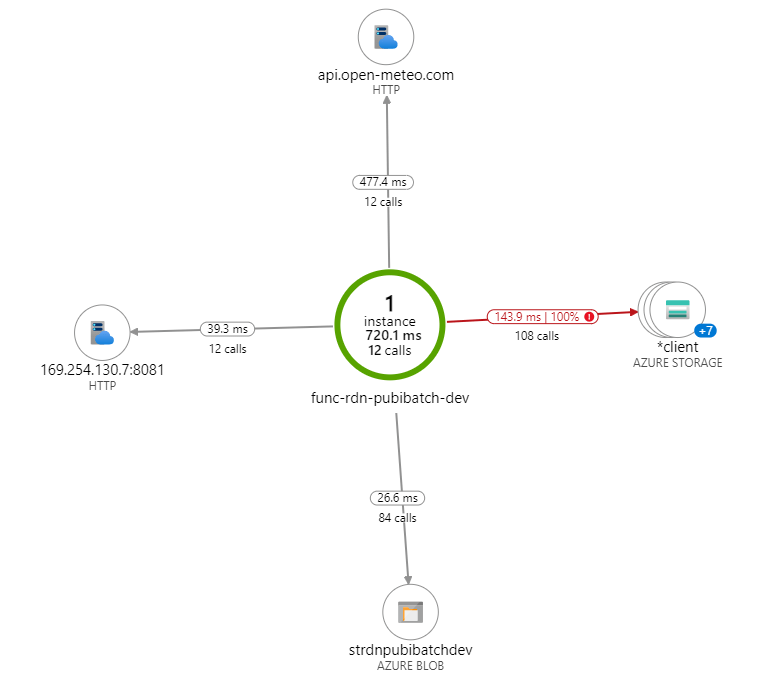
Another view in Application Insights is the Application Map, which shows the performance measures in related to the application architecture. I consider this is a ‘management’ view to show how good or bad of your solution.
As this post is for CI/CD automation, I am not going into more details about Application Insights, maybe I should have another post dedicated to it.
Closing out
I added a lot more details for this recipe compared to the first one (link). I hope this approach provides additional insight for you to understand the recipe and customize it for your needs. As usual, please let me know if you have any suggestion to improve documenting the recipe or structuring the sample code.

 Azure Recipes